


How to join a WDT92 mobile computer to a wifi network:
WiFi on the WDT92 can be accessed one of two ways:
- Start > Programs > WiLink > WCU
- Start > Control Panel > WiFi
Start > Programs > WiLink > WCU

The Wireless Configuration Utility appears.

Main tab, tap Scan List button to get a list of advertised networks (SSIDs). Optionally, tap the Add button instead to manually specify the network name, encryption type, etc.

Tap to select the desired network, then tap the Connect button.
Details of the network connection appear, including encryption settings and prompt for password or other required info. Fill in the info and tap OK.

Click the X at upper right to close the Scan List dialog.
The Main tab now shows the network in its list.

The Status tab shows connection info.

Client Status: Connected: indicates the device has joined the network successfully.
Client Status: Cycling between Joined and Diassociated [sic]: indicates the entered password is incorrect.
Other tabs show info for advanced users.
Start > Control Panel > WiFi
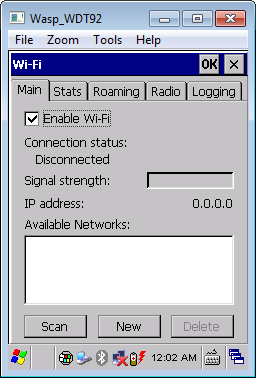
Main tab, tap Scan button to get a list of advertised networks (SSIDs).
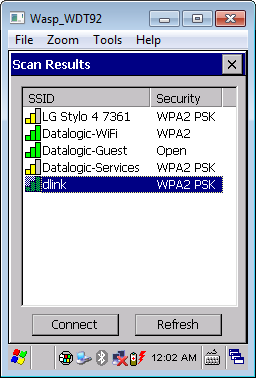
Tap to select the desired network, then tap the Connect button.
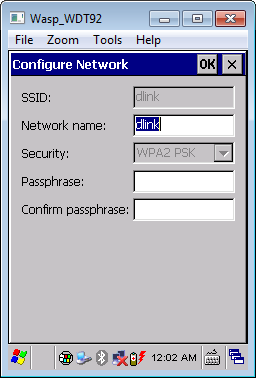
Details of the network connection appear, including encryption settings and prompt for password or other required info. Fill in the info and tap OK.
The Stats tab will show connection information.