


How to launch the Summit Client Utility
Windows Mobile devices (e.g. HC1, WDT60): Tap the Start button (Windows flag logo). On the app screen, swipe up until the Summit folder shows. Tap the folder, then tap the "scu" icon.
Windows CE devices (e.g. WDT90): Tap the Start button (Windows flag logo). Then Programs, Summit, SCU.
Windows Mobile devices (e.g. HC1, WDT60): Tap the Start button (Windows flag logo). On the app screen, swipe up until the Summit folder shows. Tap the folder, then tap the "scu" icon.
Windows CE devices (e.g. WDT90): Tap the Start button (Windows flag logo). Then Programs, Summit, SCU.
The linked Summit-Screen-Shots.PDF shows the steps for connecting to a wireless network with the Summit Client Utility on mobile devices with Wifi.
Note: If your device does not have the Admin Login button, skip that section of the document.
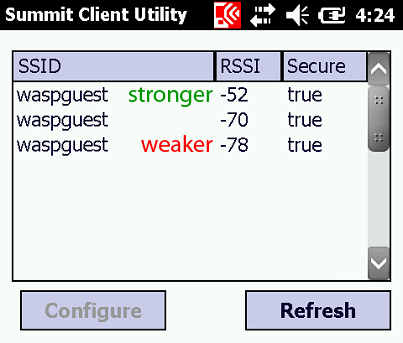
When creating a wireless profile in the Summit Client Utility, and there are multiple access points with the same name, which one is the best to choose?
Choose the one with the smallest negative number in the RSSI column. For example, -52 is stronger than -78.
More Information
The following is an excerpt from the Summit Client Utility Knowledge Center:
RSSI (Received Signal Strength Indication) refers to the strength of a transmitted signal as measured by a receiving device and typically is expressed as a negative number of decibels (dB). As a received signal weakens, the RSSI value decreases (becomes a larger negative number); as the received signal strengthens, the RSSI value increases. Typical Wi-Fi RSSI values in real-world environments range from a high of -50 dBm to a low of -95 dBm.