Symptoms
- In WaspTime Web, on the View Timecard page, the dates are formatted as yyyy-MM, and can't be distinguished. For example, in February 2015, all the dates show as 2015-02.

- In the upper right corner, the usual current date/time shows "Invalid Date Invalid Date".
Cause
This date format is controlled by a setting in IIS, not WaspTime Web.
Resolution
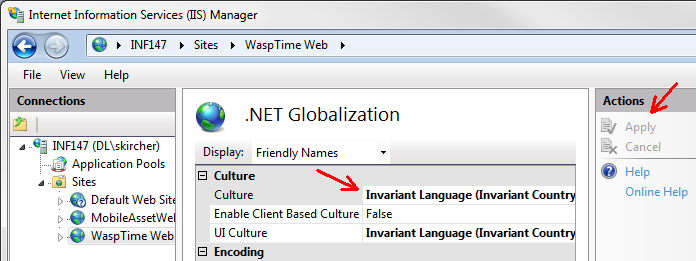
Adjust the Culture in .NET Globalization for the website in IIS Manager.
- Launch Internet Information Services (IIS) Manager: Start, Control Panel, Administrative Tools, Internet Information Services (IIS) Manager.
- Expand servername, Sites.
- Click WaspTime Web.
- In the middle WaspTime Web Home pane, double-click .NET Globalization.
- In the Culture section, on the Culture line, the default value is Invariant Language (Invariant Country), whose Short Date Format is M/d/yyyy. If this has been changed to something else, IIS will use the default date for that culture.
- Change this value back to default, or to another Culture whose Short Date Format displays as desired.
- At the right side in the Actions pane, click Apply. The change takes effect immediately. A currently logged-in WaspTime Web user will be forced to log in again when switching pages or refreshing.